

Te Kete Wānaka
Learning, Teaching and Library
LibKey


The Library is trialling LibKey to make it easier for students and staff to find articles - whether we have a current subscription, it was published open access, the author has posted a pre-publication version to an open access archive, or we need to interloan it.
LibKey also provides indicators if an article has been retracted or received an expression of concern, or if it cites articles that have been retracted.
Currently LibKey integrates seamlessly in LibrarySearch. You can also install a free extension in your browser which will give you access to the same LibKey services when you’re looking for research on the internet.

View of Wikipedia when using the Libkey extension
If you’ve used LibKey, please fill out the survey so we can better identify whether and how to roll it out further on a more permanent basis.
LibKey extension installation - instructions:
The following browsers support the Libkey extension: Chrome, Firefox, Edge, Brave, Vivaldi, and Safari.
Choose the link from above that matches the browser you are currently using and click "Install to {browser name}". Open the extension, select "Lincoln University", wait until you see the information has been saved and you are all set.
More detailed instructions can be found below.
|
1. Open the LibKey extension page in the Chrome web store: |

|
|
2. Click "Add to Chrome" to start the installation:
|
|
|
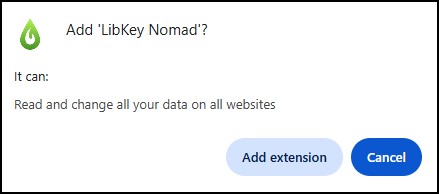
3. Click "Add Extension" |
|
|
4. Select organization – search for Lincoln University in the drop-down menu: |

|
|
5: Wait until the library name has been saved: |

|
|
5. (Optional) Click the green logo to configure it: |

|
| 6. And you’re ready to go! To test it, try going to a Wikipedia page and look in the reference list for the Lincoln-branded PDF links: | 
|
|
1. Open the LibKey extension page from the Firefox webstore. |

|
|
2. Click "Add to Firefox" to start he installation:
|

|
|
3. You may want to allow it to run in private windows if you do research that way. |

|
|
4. Pin extension to toolbar so you can find it easily: |

|
|
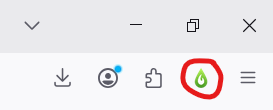
5. Now click the green logo to configure it: |
|
|
6. You will have to agree to provide anonymous data so the tool can work. |
|
|
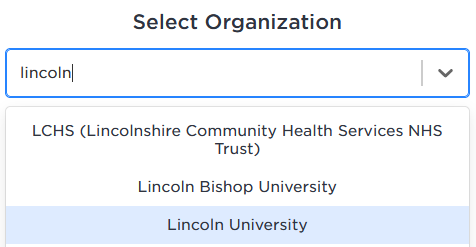
7. Select organization – search for Lincoln University in the drop-down menu: |
|
| 8. Wait until the library name has been saved: | 
|
| 9. And you’re ready to go! To test it, try going to a Wikipedia page and look in the reference list for the Lincoln-branded PDF links: | 
|
|
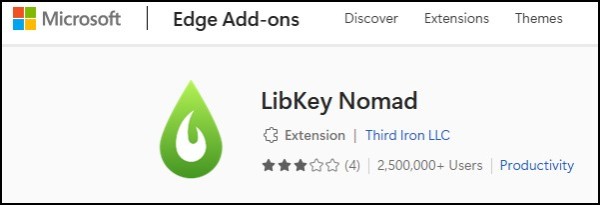
1. Open the LibKey extension page in the Microsoft store: |
|
|
2. Click "Get" to start the installation:
|
|
|
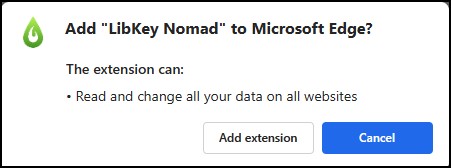
3. Click "Add Extension" |
|
|
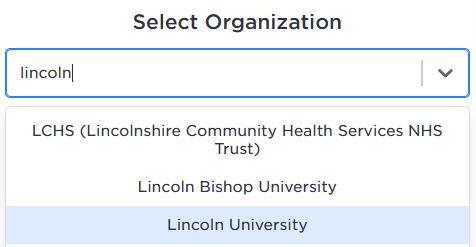
4. Select organization – search for Lincoln University in the drop-down menu: |
|
|
5. Wait until you see that the library name was saved: |
|
|
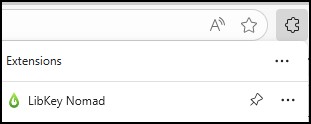
6. (Optional) Click the green logo to configure it: |
|
| 7. And you’re ready to go! To test it, try going to a Wikipedia page and look in the reference list for the Lincoln-branded PDF links: |
|
|
1. Open the LibKey extension page in the Apple store: |
|
|
2. Click "Get" to start the installation:
|
|
|
3. Click "Add Extension" |
|
|
4. Select organization – search for Lincoln University in the drop-down menu: |
|
|
5. Wait until you see that the library name was saved: |
|
|
6. (Optional) Click the green logo to configure it: |
|
| 7. And you’re ready to go! To test it, try going to a Wikipedia page and look in the reference list for the Lincoln-branded PDF links: |
|